The landscape of work has transformed significantly, prompting a reevaluation of monitor choices in both professional and personal settings. With the rise of hybrid work models and extended screen time, it is essential to consider connectivity and ergonomic features in today’s monitors. This evolution emphasizes the need for displays that not only offer superior image quality but also integrate smart connectivity and ergonomic design for enhanced comfort during prolonged use.
Connectivity: The Rise of USB-C and Thunderbolt
Modern laptops and tablets are increasingly incorporating USB-C and Thunderbolt ports, leading users to seek monitors that facilitate streamlined workflows. These ports support single-cable connections, allowing for power delivery, data transfer, and video output through one cable. This convenience has made USB-C and Thunderbolt monitors particularly popular among professionals who aim to reduce cable clutter and enhance their workspace aesthetics.
The significance of USB-C lies in its ability to provide a universal standard that allows simultaneous delivery of video, audio, data transfer, and power. For instance, when using a laptop, such as a MacBook or a modern Windows ultrabook, a USB-C monitor can power the device while displaying content on a larger screen. Users should pay attention to the wattage output when comparing USB-C monitors. A 65W power delivery may suffice for lightweight laptops, but for devices like the MacBook Pro, a rating of 90W or 100W is preferable.
While USB-C and Thunderbolt connectors look similar, Thunderbolt offers significantly higher bandwidth, with versions 3 and 4 supporting up to 40 Gbps. This capability is ideal for connecting external SSDs and docking stations without compromising on speed. Additionally, Thunderbolt monitors enable users to daisy-chain multiple displays, simplifying setups and reducing the need for additional ports or splitters. Some USB-C monitors also support Multi-Stream Transport (MST), helping to expand workspace efficiently.
Many of these monitors come equipped with built-in USB hubs, allowing users to connect peripherals like keyboards and webcams directly to the display. This feature transforms the monitor into a central hub for the workstation, facilitating a cleaner and more organized desk environment.
Prioritizing Ergonomics for Comfort and Productivity
While image quality remains a primary consideration for many users when purchasing a monitor, the importance of ergonomic design cannot be overlooked. Spending extended periods in front of a screen can lead to discomfort and health issues, including neck strain, shoulder pain, and headaches. Therefore, it is crucial to prioritize ergonomic features when selecting a monitor.
One of the first adjustments to consider is the monitor’s height. Ideally, the top of the screen should be positioned slightly below eye level to prevent users from straining their necks. Monitors with height adjustment capabilities allow for this flexibility, ensuring that users can find the most comfortable viewing angle.
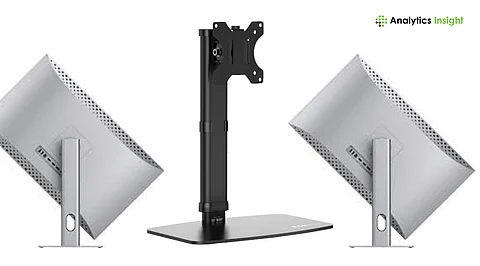
Tilt and swivel features are also important, as they enable users to adjust the screen for varying seating positions or when collaborating with others nearby. For certain professions, such as programming or editing, a pivoting monitor that can rotate 90 degrees can be particularly beneficial. This design accommodates viewing long documents or code blocks in a vertical orientation, which can enhance productivity in dual-monitor setups.
For those who prefer monitor arms or wall mounts, it is essential to ensure compatibility with VESA standards, typically 75x75mm or 100x100mm. Monitor arms provide greater flexibility, helping to reduce desk clutter while allowing users to position their screens precisely where they need them.
The decision to invest in a USB-C or Thunderbolt monitor with ergonomic adjustments ultimately depends on individual needs and work habits. For professionals such as designers or editors who require both high data speeds and comfort, these features can significantly enhance the work experience. However, for casual users with minimal screen time, a standard HDMI monitor may suffice.
When making a purchase, consumers should consider a few key questions: Do all USB-C monitors support laptop charging? Not all do; it’s important to look for models that explicitly state ‘USB-C with Power Delivery (PD).’ Is Thunderbolt superior to USB-C? Yes, Thunderbolt offers enhanced performance capabilities, including daisy-chaining. Are ergonomic stands necessary? They are essential for reducing strain during prolonged use. Can any monitor be used with a monitor arm? Only if it meets the VESA compatibility requirements.
As remote and hybrid work environments continue to evolve, understanding the importance of monitor connectivity and ergonomics will remain vital for enhancing productivity and comfort. Investing in a suitable monitor can lead to a more efficient and enjoyable work experience.